
Guide / Audit & Validation
The Complete GA4 Audit Guide
A step-by-step GA4 audit checklist covering implementation, configuration, consent mode, and data validation for analysts, marketers, and developers.
Implementation · Configuration · Data Validation · Consent Mode
A step-by-step checklist for analysts, marketers, and developers to audit,
debug, and improve every layer of their Google Analytics 4 setup.
Introduction: Why GA4 Audits Matter
Google Analytics 4 sits at the centre of modern digital measurement. Marketing teams rely on it to evaluate campaign performance, product teams use it to understand user behaviour, and leadership depends on its reports when making budget decisions. In many organisations, GA4 is not just another tool — it is the foundation of the entire measurement stack.
However, the data that organizations rely on is often less reliable than expected.
Independent analytics audits consistently show that a large number of websites contain tracking errors. A large-scale study conducted by Semrush found that over 80% of websites have at least one analytics or tracking configuration issue. These problems range from duplicate tracking scripts and broken event tags to incomplete measurement setups.
At first glance, these issues may appear minor. But GA4 is built on an event-based data model, where every interaction — from page views to purchases — is captured as an event. When these events are missing, duplicated, or incorrectly configured, the entire data structure begins to break.
In practice, this means many GA4 properties fail to capture the actions that matter most. Analytics audits frequently reveal that 50–60% of implementations do not track critical business events such as form submissions or purchases. At the same time, 30–40% of properties contain duplicate or incorrectly named events, which disrupt reporting and distort attribution models.
The result is a subtle but serious problem. Dashboards still populate with numbers, reports still generate charts, and teams continue making decisions. But the underlying data may only tell part of the story.
This is why auditing a GA4 implementation is not simply a technical exercise. It is a critical step toward ensuring that the data used for decision-making reflects what is actually happening on the website.
This guide is structured around three audit layers, reflecting the way experienced analytics consultants systematically investigate implementations, uncover measurement gaps, and restore confidence in the data..
When Should You Audit GA4?
• Immediately after a new GA4 implementation goes live
• After any major website redesign, CMS migration, or platform change
• When you notice unexplained data anomalies — spikes, drops, or zero conversions
• After changes to your consent management platform (CMP)
• When onboarding a new client or taking over an existing property
• On a quarterly cadence as a routine health check
• After any significant GTM container changes or new tag deployments
Tools Required for This Audit
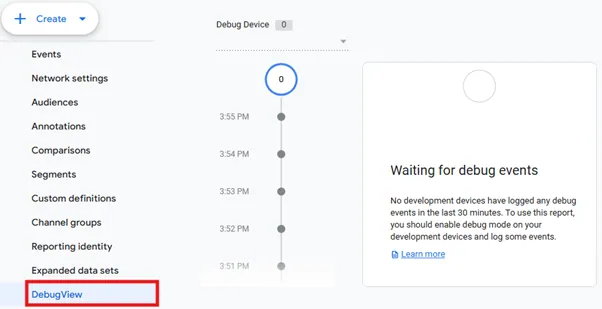
• GA4 DebugView — Admin > DebugView — real-time events from a single device for granular verification
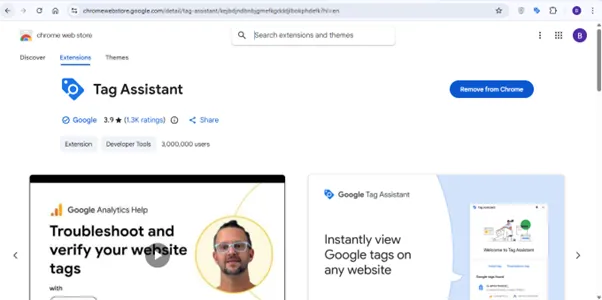
• Google Tag Assistant — Chrome extension that records a session and shows all tags that fired
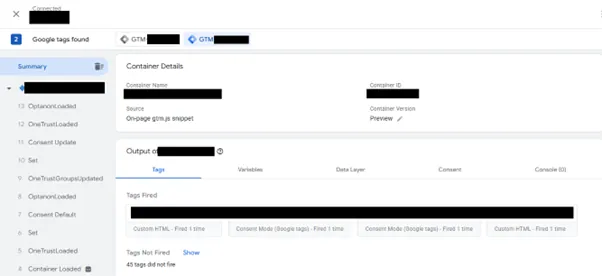
• GTM Preview Mode — shows exactly which tags fired, triggers activated, and variable values
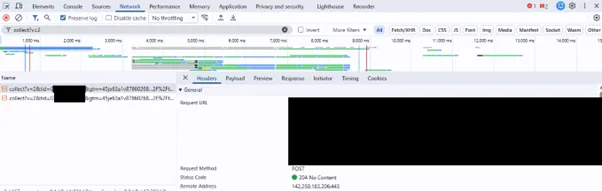
• Chrome DevTools — Network tab filtered by 'collect' to inspect raw GA4 requests and consent signals
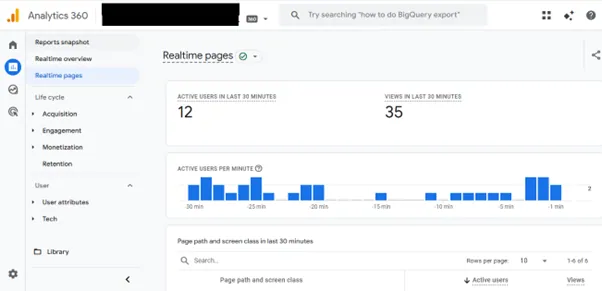
• GA4 Realtime Report — Reports > Realtime — confirms live data is arriving
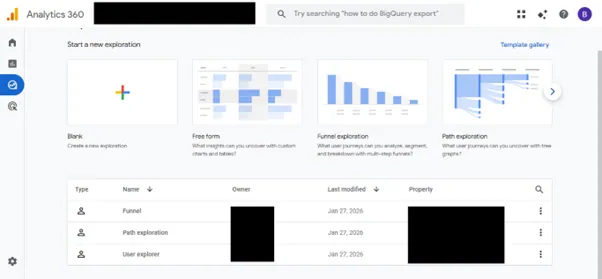
• GA4 Explorations — for cross-checking conversion data, transaction IDs, and cardinality issues
The Four Audit Layers
Each layer addresses a different failure mode. They are designed to be worked through in order.
| # | Layer | What It Checks |
|---|---|---|
| 1 | Implementation | Is GA4 installed and firing correctly? Covers tracking code, tag architecture, event triggers, and parameter values. |
| 2 | Configuration | Is GA4 Admin set up correctly? Covers retention, referral exclusions, cross-domain, Enhanced Measurement, and channel groups. |
| 3 | Consent Mode | Is privacy compliance handled correctly? Confirms Consent Mode v2, default state timing, CMP updates, and cookieless pings. |
| 4 | Data Validation | Is the arriving data accurate and usable? Checks bot traffic, duplicate transactions, misattribution, and revenue accuracy. |
Layer 1 — GA4 Implementation Audit
The implementation layer forms the foundation of the entire measurement system. If tracking is broken at this stage, no amount of configuration or reporting adjustment can correct the underlying data. This layer verifies how GA4 has been installed across the website, how tags are structured, and how events are triggered during user interactions.
1.1 Identify the Installation Method
The way GA4 is installed determines how the entire measurement system behaves — its debuggability, its likelihood of duplicate tracking, and the level of control you have over when events fire. The first step in any audit is to identify the implementation method.
| Method | Advantages | Common Risks |
|---|---|---|
| Direct gtag.js | Full control. No extra tool dependency. | Snippet in <body> not <head>. Multiple snippets = duplicate events. Wrong Measurement ID. |
| Google Tag Manager (GTM) | Flexible, no-code updates. Easy to debug. | Multiple GA4 config tags. Config firing on every event. Duplicate. |
| CMS Integrations (WP, Shopify) | Simple setup via plugin or settings field. | Runs alongside GTM causing duplicates. Hard to find where snippet is injected. |
| Third-Party Plugins | Automated tracking features. | Conflicts with GTM or CMS. Hidden tracking layers causing duplicate events. |
1.2 Validate Tag Architecture in GTM
Open GTM Preview Mode and navigate through the key pages of the website. The goal is to observe how tags fire during real interactions. A well-structured container shows a clean and logical sequence of tags, triggers, and variables without unnecessary duplication.
The GA4 Configuration Tag — Common Misconceptions
A widespread myth is that the GA4 Config Tag must fire on 'All Pages'. In reality, the rule is: the Config Tag must fire before any event tags that reference the same Measurement ID on any given page or interaction. The trigger strategy should match your actual architecture.
• Consent Mode setups: Fire the Config Tag on a custom consent_initialized event (from your CMP callback) or on the Consent Updated Event, not All Pages. Firing before consent is established causes consent state not to be respected correctly.
• Single-Page Applications (SPAs): All Pages in GTM fires only on gtm.js (initial load). Subsequent virtual navigations require a History Change trigger or a custom route-change event. send_page_view: false on the Config Tag, then fire a dedicated page_view event tag on route changes.
• Multi-domain or multi-environment setups: Use a Lookup Table variable mapped to {{Page Hostname}} to dynamically return the correct Measurement ID. One Config Tag serves all environments cleanly.
1.3 Detect and Fix Duplicate Tracking
Duplicate tracking is the single most common GA4 implementation error. It inflates pageviews, sessions, and events — making all downstream analysis unreliable.
Most Common Causes of Duplicate Tracking
• Enhanced Measurement page_view is ON and GTM has a custom page_view event tag
• CMS plugin and GTM are both installing GA4
• Two GA4 Configuration Tags with the same Measurement ID in the same GTM container
• gtag.js in HTML source and GTM-based GA4 running simultaneously
• Legacy Universal Analytics tags that also push data to GA4
How to Detect Duplicates?
- Open GA4 DebugView and load a page — you should see exactly one page_view event
- In GA4 Realtime, page_view appearing twice per navigation confirms duplicates
- In Admin > Data Streams > Enhanced Measurement: if Page Views is ON and you have a GTM page_view tag, disable one of them
- In GTM, some tags are configured with the firing option “Once per Event” when they should actually be “Once per Page.” This can cause the same tag to fire multiple times if the event is triggered more than once on a page.
1.4 Validate Page View Tracking
Every page load should produce exactly one page_view event with three core parameters correctly populated, plus any business-specific parameters your reporting requires.
• page_location — must contain the full URL including protocol (https://). Strip session IDs and tokens using URL parameter redaction.
• page_title — must match the <title> tag. If titles are missing or all return the same value, this indicates a tracking or CMS issue.
• page_referrer — the previous page URL. Should be empty on direct visits and contain the referring URL on internal navigation.
The 'Landing Page Not Set' Problem
One of the most commonly overlooked implementation issues is the '(not set)' value appearing in Landing Page reports. This occurs when GA4 receives a session_start event without a corresponding page_view event on that same page load — usually because the page_view fires before the session is properly initialised, or because the page_view is completely missing on the entry page.
• In GTM, verify the page_view tag fires on the same trigger as the GA4 Config Tag initialisation — not in a sequence that could fire before GA4 is ready
• For cached pages or server-side rendered frameworks, confirm the GA4 snippet still loads on every page, not just on client-side navigation
• In GA4 Explorations, create a free-form exploration with Landing Page as the dimension — any (not set) rows indicate missed entry page_view events
• Check if your consent setup suppresses page_view on the first page for denied users — consider firing a cookieless page_view regardless of consent state
1.5 Single-Page Application (SPA) Tracking
React, Angular, Vue, Next.js, and similar frameworks update the URL via JavaScript without triggering a browser page reload. Without special handling, GA4 records only the first pageview and misses all subsequent navigation.
Symptoms of Broken SPA Tracking
• 70–90% of all pageviews are attributed to the homepage URL
• Pages per session appears abnormally low, close to 1.0
• Engagement time on the homepage is extremely high while other pages show zero
How to Fix SPA Tracking?
1. In Admin > Data Streams > Enhanced Measurement, enable 'Page changes based on browser history events'. This measurement option listens for pushState, popState, and replaceState. Test carefully — some frameworks fire duplicate history events on initial load.
2. In GTM, create a History Change trigger and attach it to a GA4 page_view event tag that sends updated page_location and page_title variables. This is the most reliable approach.
3. Set send_page_view: false in the GA4 Config Tag fields to prevent the initial automatic page_view, then fire a separate dedicated page_view event tag on both gtm.js (for the first load) and History Change (for subsequent navigations).
4. Verify your GTM {{Page Path}} and {{Page Title}} variables resolve correctly after a route change — some SPA frameworks require a setTimeout delay before the DOM updates title and URL.
1.6 Validate Custom Event Tracking
Open GTM Preview Mode and manually trigger each custom event — fill a form, click a button, add a product to cart. For each event, verify the following four conditions:
5. The event fires exactly once per interaction — not on page load, and not twice from duplicate tags
6. The event name matches the documented naming convention: snake_case, all lowercase, no spaces.
7. All expected parameters are present and contain correct, non-null values
1.7 Validate Event Parameters
An event firing without useful parameters is nearly useless for analysis. Every event should carry contextual parameters that answer what, where, and how about the interaction.
• form_submit: form_id, form_name, form_type (e.g. contact / newsletter), page_location
• button_click: button_text, button_location (hero / navigation / footer), page_location
• file_download: file_name, file_extension, link_url
• search: search_term, search_results_count
• video_start / video_complete: video_title, video_duration, video_provider, video_url
• error: error_type, error_message, page_location
Layer 2 — GA4 Configuration & Settings Audit
Once tracking is confirmed as clean, audit the GA4 Admin panel. Misconfigured settings here distort data even when the underlying tracking is correct. Work through every section below methodically.
2.1 Property Settings
Navigate to Admin > Property Settings. These settings affect every report in the property.
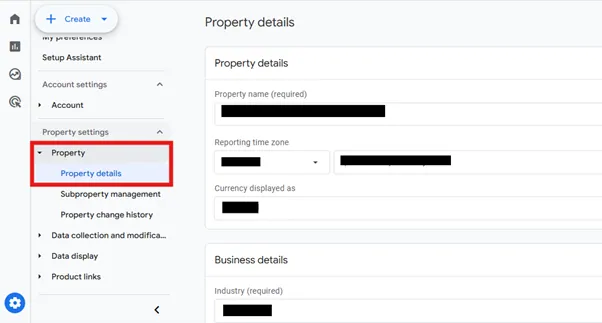
• Timezone: Must match the timezone your business operates and reports in. Wrong timezone causes date-boundary mismatches. Fix immediately — but note it does not backfill historical data.
• Currency: Must match the currency your transactions are processed in. Cannot be changed retroactively — all historic revenue figures will be wrong if incorrect.
• Industry Category: Required for Google's benchmarking features. Select the closest match to your business.
• Property Name: Should clearly identify the property (e.g. 'ACME Corp — Production'). Avoid generic names, especially if managing multiple properties.
2.2 User Permissions Audit
Navigate to Admin > Account > Account Access Management. Review every user listed and remove or downgrade any access that is no longer needed.
• Viewer — Read-only access to reports. Safe to give to stakeholders.
• Analyst — Can create Explorations and Audiences. Appropriate for data analysts.
• Editor — Can change configuration settings. Should be limited to analytics team members.
• Admin — Full control including deleting the property. Maximum 2–3 named individuals. Never give Admin to agencies unless explicitly required.
Specifically look for: former employees who have left, old agency or contractor accounts, personal Gmail accounts that should be service accounts, and duplicate user entries.
2.3 Data Streams
Navigate to Admin > Data Streams. A standard setup has one web stream per website. Multiple web streams for the same site is a red flag — they result in duplicate traffic and split reporting.
• Stream URL matches the actual production domain (not staging or localhost)
• Stream is actively receiving data — the Last 48 Hours activity indicator should show traffic
• Measurement ID (G-XXXXXXXX) exactly matches what is deployed on the live site
2.4 Enhanced Measurement Configuration
Enhanced Measurement automatically tracks standard interactions without custom GTM code. Review each toggle individually — enabling everything blindly causes duplicate tracking.
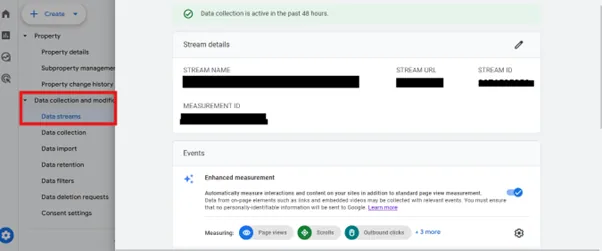
• Page Views — Always ON. This is the base tracking for all page_view event Check for additional settings for History change event
• Scrolls — ON for most sites. Fires scroll at 90% scroll depth. Turn OFF if GTM has custom scroll tracking.
• Outbound Clicks — ON. Fires click when a user leaves your domain. Turn OFF if GTM has custom outbound click events.
• Site Search — ON if your site has a search function. Configure all query parameters (GA4 supports up to 10). Common params: q, s, query, search_query.
• Video Engagement — ON if your site embeds YouTube videos. Tracks video_start, video_progress, video_complete. Disable if you have custom video tracking.
• File Downloads — ON. Tracks clicks on .pdf, .zip, .docx and other common file types. Verify tracked extensions match what your site serves.
• Form Interactions — Beta feature and unreliable. Test carefully. Disable if you have GTM form tracking — it will duplicate form_start and form_submit events.
2.5 Cross-Domain Tracking
If users move between two or more domains during a single journey — such as a main site to a checkout subdomain or a third-party booking engine — sessions will break and attribution will be wrong. Each domain transition creates a new session and appears as a self-referral.
How to Configure?
Navigate to Admin > Data Streams > [stream] > Configure tag settings > Configure your domains. Add every domain and subdomain that is part of the user journey. GA4 will append a _gl parameter to URLs to maintain session continuity across domains.
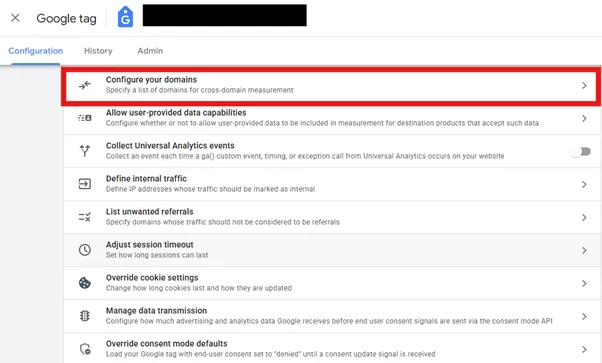
How to Detect If It Is Broken
• In Acquisition > Traffic Acquisition, filter by source = your own domain. Significant sessions attributed from your own domain as referral means cross-domain is broken.
• In Path Explorations, sessions appear to restart at checkout or booking pages.
2.6 Referral Exclusions
When a user leaves your site to complete a payment and returns, the payment gateway domain appears as the referral source — overwriting the original acquisition channel. This corrupts attribution for all transactions.
• paypal.com, checkout.paypal.com
• stripe.com, js.stripe.com
• checkout.shopify.com
• razorpay.com, pay.razorpay.com
• Any booking engine or third-party checkout platform you use
Navigate to Admin > Data Streams > [stream] > Configure tag settings > List unwanted referrals. Add each domain. Test by completing a transaction and verifying the referral source is not overwritten in Realtime.

2.7 Internal Traffic Exclusion
Traffic from your own team, developers, and QA testers inflates engagement metrics, pollutes conversion data, and can make test purchases appear as real revenue.
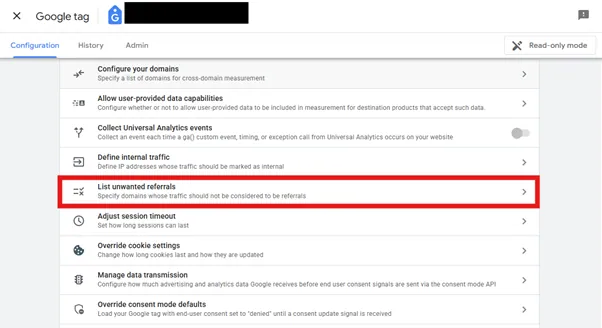
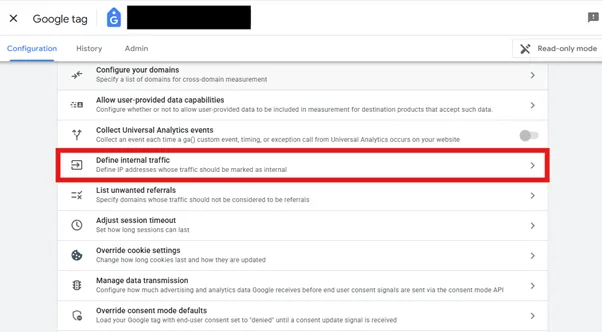
- Navigate to Admin > Data Streams > [stream] > Configure tag settings > Define internal traffic. Add all office IP addresses and known remote worker IPs using CIDR notation for ranges.
- Navigate to Admin > Data Filters > Create Filter > Internal Traffic. Set to Testing state first — this tags matching traffic without removing it.
- Verify by checking the Test Data Filter dimension in Explorations — confirm the right sessions are being identified.
- Only switch to Active state after one week of validation. Active state permanently removes matching data. It cannot be recovered.
2.8 Cookie and Session Settings
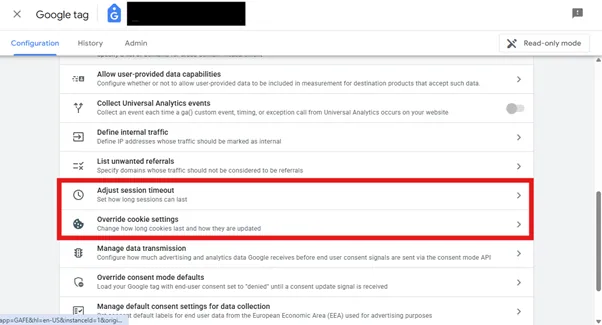
Navigate to Admin > Data Streams > [stream] > Configure tag settings > Override Cookie settings (advanced). These settings affect how long users are identified
• Cookie Expiration — Default is 2 years. The duration the _ga cookie persists. Reducing this may be required under privacy law in some jurisdictions.
Navigate to Admin > Data Streams > [stream] > Configure tag settings > Adjust session timeout. These settings affect how sessions are counted.
• Session Timeout — Default is 30 minutes of inactivity. Increase for content-heavy sites where users read for extended periods without clicking (e.g. news or research sites). Consider 60 minutes.
• Engaged Session Timer — Default is 10 seconds. A session is engaged if it lasts more than 10 seconds, includes a conversion, or has 2 or more pageviews. Only adjust if your content type genuinely justifies a different threshold.
What Counts as an Active User?
In GA4, an Active User is defined as a user who has an engaged session — meaning their session lasted longer than 10 seconds, included at least one conversion event, or included at least two pageviews or screenviews. This is fundamentally different from Universal Analytics, which counted any user who fired a hit.
The practical implication: GA4's user count will typically be lower than UA's. This is not a data loss — it is a more meaningful measure of genuine engagement. If your Active User count looks suspiciously low, verify your session timeout setting and check that your content engagement time is being measured correctly with the engaged_session metric.
2.9 Data Retention Settings
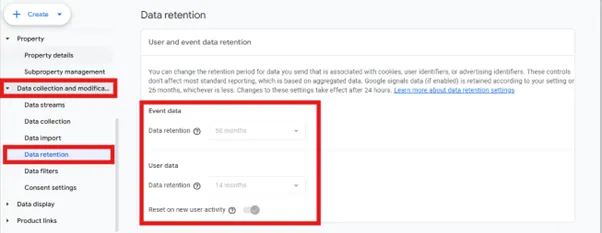
Navigate to Admin > Data Collection and Modification > Data Retention. This is one of the most frequently overlooked settings and has a major impact on your ability to run historical analysis in Explorations.
• GA4 360 users can extend retention to 50 months
• The 'Reset user data on new activity' toggle resets the retention countdown on each visit — leave this ON
• This setting does NOT affect standard pre-built reports, which use aggregated data stored indefinitely
• For data beyond 14 months, link GA4 to BigQuery and export daily — this is the only way to preserve raw event data long-term
2.10 Data Redaction and Privacy Settings
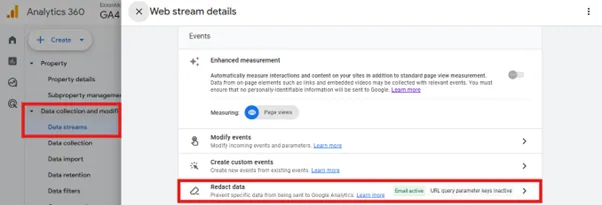
Navigate to Admin > Data Streams > [stream] > Redact Data
• Email Redaction — Must be enabled. If a user's email appears in a URL after form submission, GA4 will detect and redact it before storage. This is a compliance requirement under GDPR.
• URL Query Parameter Redaction — Add any URL parameters that may carry sensitive data: email, user_id, token, session_id. Parameters like fbclid and gclid are handled automatically.
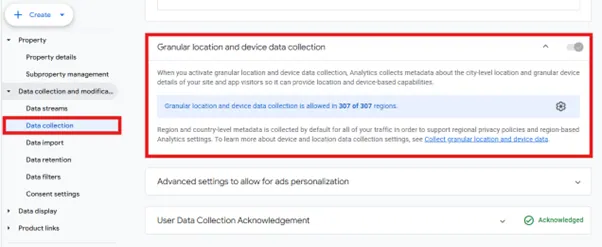
Granular Location and Device Data
Navigate to Admin > Data Collection and review Granular Location and Device Data. This controls whether city-level location and device model information is collected. Disable if you operate in the EU/EEA and do not require this level of granularity, or if your Data Protection Authority has advised against it.
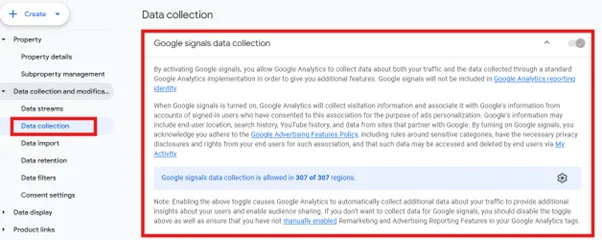
2.11 Google Signals and Reporting Identity
Google Signals links GA4 data to logged-in Google accounts, enabling cross-device tracking, demographic reports, and remarketing audience creation. However, it introduces data thresholding — GA4 suppresses data in reports when audience sizes are too small to anonymise individuals.
• Symptoms of thresholding: '(Thresholding applied)' banners in reports, or entire rows disappearing from breakdowns
• Especially common for smaller sites, niche segments, and detailed dimension breakdowns
• If thresholding is causing significant data loss, disable Google Signals and use User ID for cross-device attribution instead
Reporting Identity Options
• Blended — Uses User ID > Google Signals > Device ID in priority order. Best cross-device view but most susceptible to thresholding.
• Observed — Uses User ID > Device ID only. More privacy-conservative. Avoids Google Signals thresholding.
• Device-based — Tracks by device only, equivalent to Universal Analytics behaviour. Accurate device headcount with no thresholding.
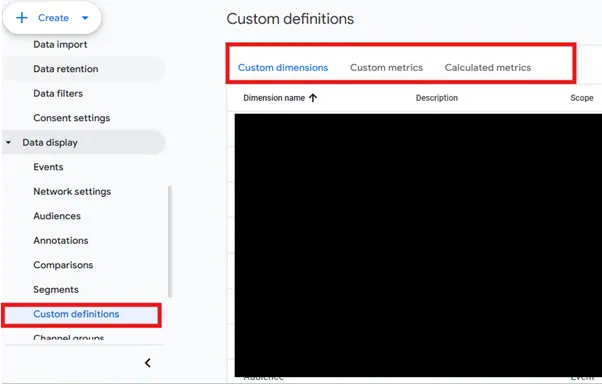
2.12 Custom Definitions
Navigate to Admin > Data Display > Custom Definitions. This is where you register the custom event parameters you are collecting so they appear in reports and Explorations. Firing an event parameter without registering it as a custom dimension means that parameter is invisible in all GA4 reporting interfaces.
Event-Scoped Dimensions (Most Common)
• search_term — Register to enable the Site Search report
• button_text / button_id — Identify which button was clicked. Essential for CTA analysis.
• form_name / form_id — Identify which form was submitted. Required for lead source analysis.
• video_title — Name of the video watched
• file_name — Name of the file downloaded
• error_message — Description of the error encountered. Register for 404 and JS error tracking.
• page_type — Classification of page: product / category / blog / checkout
User-Scoped Dimensions
• login_status — Is the user logged in or anonymous?
• user_type — customer / trial / admin — allows cohort analysis by account type
• subscription_plan — For SaaS products, tracks which plan tier the user is on
Cardinality Warning
Each unique value for a custom dimension counts against GA4's cardinality limit. When a dimension has too many unique values, GA4 groups excess values into an (other) row — hiding real data. Never register high-cardinality parameters: full URLs, transaction IDs, user IDs, timestamps, or search queries with unlimited variation. GA4 Free allows 50 event-scoped, 25 user-scoped, and 10 item-scoped custom dimensions.
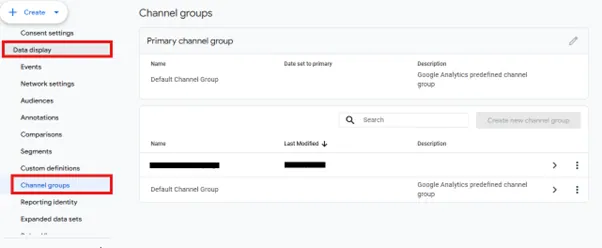
2.13 Channel Groups
GA4's default channel grouping often misclassifies traffic, especially if UTM tagging is inconsistent. Navigate to Admin > Channel Groups to review both the default group and any custom groups.
| Problem | Root Cause | Fix |
|---|---|---|
| Email showing as Referral | utm_medium=email missing | Add utm_medium=email to all email campaign links |
| Paid Social = Organic Social | utm_medium not cpc/paid-social | Standardise to utm_medium=paid-social |
| SMS = Direct | utm_medium missing | Add utm_medium=sms to all SMS links |
| Large Unassigned bucket | Malformed or missing UTMs | Audit all campaign links, enforce UTM governance |
| Paid Search = Organic | utm_medium not cpc/paidsearch | Ensure all paid ads use utm_medium=cpc |
| Paid Shopping false positives | Campaign name contains 'shop' | Add utm_medium = cpc condition to Paid Shopping rule |
| Affiliates → Referral | utm_medium=affiliate missing | Require utm_medium=affiliate in all partner links |
| Push Notifications → Direct | No UTMs appended to push links | Add utm_medium=push and utm_source=push-provider |
What does UTM mean?
UTM (Urchin Tracking Module) parameters are query string variables appended to a URL. GA4 reads them on landing to attribute the session to the correct source, medium, and campaign. There are five parameters: three are considered standard practice on every campaign link; two are optional but valuable.
| Parameter | Purpose | Requirement | Description | Example |
|---|---|---|---|---|
| utm_source | Where is the traffic coming from? | Required | Identifies the specific platform, publisher, or tool that sent the visitor. GA4 maps this value to the Session source dimension. | utm_source=google, utm_source=facebook, utm_source=klaviyo, utm_source=shareasale, utm_source=attentive |
| utm_medium | What type of channel is this? | Required | Defines the marketing channel category. GA4 Default Channel Grouping primarily relies on this parameter, so using recognized values is important. | utm_medium=email, utm_medium=cpc, utm_medium=paid-social, utm_medium=social, utm_medium=display, utm_medium=sms, utm_medium=affiliate, utm_medium=push |
| utm_campaign | Which campaign or initiative? | Required | Specifies the marketing campaign name. A consistent slug-style naming convention (lowercase, no spaces) helps maintain clean reporting and easier campaign analysis. | utm_campaign=black-friday-2025, utm_campaign=brand-awareness-q1, utm_campaign=cart-abandonment, utm_campaign=generic-search |
| utm_content | Which creative or placement? | Optional | Differentiates between multiple links within the same campaign. Useful for A/B testing, creative variations, or link placement analysis. | utm_content=hero-button, utm_content=300×250-banner, utm_content=variant-b, utm_content=top-nav-logo |
| utm_term | Which keyword triggered this? | Optional | Originally used for paid search keyword tracking, but can also label audience segments or targeting criteria in ads. | utm_term=running+shoes, utm_term=brand+name, utm_term=lookalike-30d |
| utm_id | GA4 campaign ID | GA4 Only | A GA4-specific parameter used to connect sessions with campaign IDs from CRM or ad platforms, useful for data imports and advanced attribution analysis. | utm_id=camp_8842 |
Klaviyo is a great real-world example for UTM tracking because it handles both automatic UTM appending and custom UTM configuration. Here's how it works:
Klaviyo as a UTM Example
What Klaviyo does by default
When you send an email campaign or flow in Klaviyo, it can automatically append UTM parameters to every link in your email. A typical Klaviyo-generated URL looks like this:
https://yoursite.com/products/shoes
?utm_source=klaviyo
&utm_medium=email
&utm_campaign=summer_sale_2024
&utm_content=hero_cta_button

The 5 UTM Parameters in a Klaviyo Context
| UTM Parameter | Klaviyo Default | What It Tells You |
|---|---|---|
| utm_source | klaviyo | Traffic came from Klaviyo |
| utm_medium | Delivered via email channel | |
| utm_campaign | Campaign/flow name | Which send drove the visit |
| utm_content | Block or link name | Which link or button was clicked |
| utm_term | Not used by default | Can be customised manually |
Three Ways Klaviyo Uses UTMs
1. Auto-tagging on Campaigns In campaign settings, toggle "Add UTM parameters" on. Klaviyo populates utm_source and utm_medium automatically, and uses the campaign name for utm_campaign.
2. Flow-level UTM tagging In automated flows (welcome series, abandoned cart, post-purchase), each email can carry UTMs that identify the specific flow and step — so you can see in GA4 exactly which automation touchpoint drove a conversion.
3. Custom UTM overrides You can override any default with Klaviyo's dynamic tags, for example:
utm_campaign={{ event.item_name }}_abandoned_cart
utm_content={{ message.name }}
This lets you pass product-level or message-level data directly into your UTM string.
Why This Matters?
In GA4, you would then see Klaviyo traffic segmented under:
- Source / Medium: klaviyo / email
- Campaign: The exact send or flow name
- This lets you attribute revenue, sessions, and conversions back to specific emails
Common Klaviyo UTM Mistake to Avoid
If you have both Klaviyo auto-UTMs enabled and hardcoded UTMs on your links, the hardcoded ones will be overwritten by Klaviyo. Always check which layer is applying the UTMs to avoid duplicate or conflicting parameters.
2.14 Product Links
Navigate to Admin > Product Links. These integrations determine what GA4 data flows into and from other Google products.
• Google Ads — Avoid marking the same conversion in both Google Ads (via GTM) and GA4 import. This creates duplicate conversion counting. Use GA4 as the primary conversion source or Google Ads tags as primary — not both for the same event.
• Google Search Console — After linking, Search Console data appears in GA4 Reports. Note that Search Console data is at query level while GA4 data is at session level — they use different attribution models.
• BigQuery — Free to link; you pay only for BigQuery storage and queries. Exports raw event-level data daily. Essential for long-term retention beyond GA4's 14-month limit and for custom SQL analysis.
• Merchant Center — For ecommerce sites to connect product data for Shopping insights.
Layer 3 — Consent Mode Audit
Consent Mode v2 is now required for EU/EEA traffic if you use Google Ads conversion modelling and remarketing. Without it, you risk data loss, non-compliance with GDPR, and degraded Google Ads performance. This section provides a complete audit path from implementation through to verification.
The Four Consent Parameters
| Parameter | Controls | Effect When Denied |
|---|---|---|
| analytics_storage | GA4 measurement cookies | denied = cookieless pings; granted = full tracking |
| ad_storage | Google Ads advertising cookies | denied = no ad cookies set on device |
| ad_user_data | Sending hashed user data to Google | Required for Enhanced Conversions |
| ad_personalization | Personalised ads & remarketing | Must be denied for users who opt out of targeting |
When a user accepts or declines cookies, your CMP must fire a gtag consent update call that overrides the default. Verify this using the GCD parameter in network requests.
Verify the CMP Fires the Consent Update
How to Read the GCD Parameter?
Open Chrome DevTools > Network tab, filter for 'collect', and inspect the gcd= parameter in GA4 request URLs.
GCD Letter Reference
| Letter | Meaning |
|---|---|
| p | Granted by default |
| r | Denied by default |
| l | Granted after user interaction |
| m | Denied after user interaction |
| X | Not set |
What to Look For
• Decline cookies — check gcd= shows 'r' for denied consent types.
• Accept cookies — check gcd= values change from 'r' to 'l' (granted after interaction).
• If gcd= is absent entirely: Consent Mode is not implemented on this site.
• If 'X' appears for any type: that consent type was never declared in the default.
Basic vs Advanced Consent Mode — Which Should You Use?
• Basic Consent Mode: GA4 does not fire at all until consent is granted. Simpler to implement but loses all pre-consent data — including bounces and abandonment behaviour. Suitable for sites with very simple analytics needs or where regulatory requirements mandate no data collection before consent.
• Advanced Consent Mode: GA4 fires on all users but respects consent signals. For denied users, GA4 sends cookieless pings used for modelling. This recovers estimated behaviour data while remaining compliant. Recommended for most commercial websites and e-commerce.
Layer 4 — GA4 Data Validation Audit
Having correct tracking and correct configuration is not enough — you also need to verify the data that arrives is accurate, uncontaminated, and analytically usable. This layer requires going into actual GA4 reports and looking for anomalies.
4.1 Validate Traffic Source Accuracy
Navigate to Reports > Acquisition > Traffic Acquisition. Look at the breakdown by Session default channel group and compare against what you know about the site's marketing activity.
Red Flags to Investigate
• Direct traffic above 40% — usually indicates missing UTM parameters on campaign links, dark social, or email clients stripping referrer data
• Unassigned above 5% — indicates traffic arriving with UTMs that do not match any channel rule, or malformed UTMs
• Your own domain appearing as Referral — cross-domain tracking is broken
• Payment gateways appearing as Referral (Stripe, PayPal, Razorpay) — referral exclusion list is incomplete
• Large volumes of single-session, zero-engagement traffic from unknown sources — potential bot traffic
4.2 Validate Conversion Tracking
Navigate to Admin > Events and look at the Conversions column. Then navigate to Reports > Engagement > Conversions.
• Are the right events marked as conversions? (purchase, generate_lead, sign_up — not scroll or session_start)
• Do conversion counts look realistic relative to traffic volume?
• Is the conversion rate within the expected range for your industry?
• For ecommerce: does the number of purchase events match back-end order counts within 15%?
• If phone calls are a real lead source, are they tracked at all? A click on a tel: link records a tap, not a connected call; call tracking closes that gap.
Common Conversion Tracking Problems
• Scroll event marked as conversion — every scroll appears as a conversion, dramatically inflating rates
• page_view marked as conversion — every session counts as a conversion, making the metric meaningless
• Conversion event fires on page load instead of after form submission — incorrect trigger in GTM
• Purchase event fires on a confirmation page that is cached, shared, or accessible directly — duplicate transaction IDs
4.3 Identify Cardinality Issues
Cardinality occurs when a report dimension has too many unique values, causing GA4 to group excess rows into (other). This hides real data and makes analysis incomplete.
• Page path report — caused by session IDs or product IDs in URLs (e.g. /product?id=12345)
• Custom dimensions — caused by registering parameters that carry unique values like transaction IDs or user IDs
• Event parameters — caused by using dynamic values like full URLs or timestamps as parameter values
How to Fix Cardinality
• Strip session IDs and tracking parameters from URLs using URL query parameter redaction
• Consolidate page paths using URL normalisation in GTM before sending page_location
• Register only low-cardinality parameters as custom dimensions
• For high-cardinality data such as transaction IDs and user IDs, use BigQuery for analysis
4.4 Detect Bot and Spam Traffic
GA4 has built-in bot filtering enabled by default but it does not catch all automated traffic. Manual review is still required.
• Sudden traffic spike from a single country you have no marketing presence in
• Sessions with 0.0 seconds engagement time and a single page view in large volumes
• New user percentage spiking to 95% or above suddenly
• Traffic from unusual browser strings (Java, Python, curl user-agent strings)
• Very high event count per session with no engagement time
Create a GA4 audience for suspected bot traffic (filter by engagement_time_msec = 0 AND session_engaged = false) and exclude it from key reports. If using GTM, add a trigger exception that blocks tag firing when the user agent matches known bot patterns.
4.5 Engagement Metrics Health Check
Navigate to Reports > Engagement > Overview. Benchmark core metrics against expected ranges.
| Metric | Healthy Range | What Anomalies Indicate |
|---|---|---|
| Engagement Rate | 50–70% content; 60–80% ecommerce; 40–60% lead gen | Above 90% = duplicate sessions or bot filtering. Below 30% = likely bot traffic or broken tracking. |
| Average Engagement Time | 45 sec to 3 min | Below 10 sec = bots or broken. Above 10 min = tab-leaving bias inflating figures. |
| Sessions per User | 1.3–2.0 | Above 3.0 = internal traffic leak. Below 1.1 = duplicate user identification issue. |
| Views per Session | 1.5–3.5 | Below 1.2 = SPA not tracking virtual pageviews. Above 8 = duplicate page_view firing. |
| Active Users / Total Users | Should align within 10–15% | Large gap may indicate User ID or Google Signals misconfiguration skewing user counts. |
4.6 Page Path Quality Check
Navigate to Reports > Engagement > Pages and Screens. Compare the number of unique page paths to the actual number of pages on the site.
• More unique paths than actual pages — caused by URL parameters such as ?color=red or ?sort=price creating separate page entries for the same content
• Case sensitivity — /Contact and /contact are separate pages in GA4. Standardise URL casing in your CMS.
• Trailing slash variations — /page and /page/ are counted separately. Handle at server level with 301 redirects.
• Session IDs in URLs — /checkout?session=abc123 creates a unique page for every session. Must be stripped via redaction.
Ecommerce GA4 Audit
Ecommerce tracking requires its own dedicated audit layer because errors here directly affect revenue reporting and purchase attribution — the two most critical metrics for any online retail business.
Verify the Full Ecommerce Funnel
GA4's ecommerce model uses a standardised set of events that should fire in sequence. Every step in this funnel should be firing with consistent item data.
| Event | When It Fires & Required Parameters |
|---|---|
| view_item_list | Fires when a product list is shown. Required: item_list_id, item_list_name, items array. |
| view_item | Fires on product detail page. Required: currency, value, full items array. |
| add_to_cart | Fires when product is added to cart. Must include items array with quantity. |
| view_cart | Fires when cart is viewed. Recommended for cart abandonment analysis. |
| begin_checkout | Fires when checkout is initiated. Must include items array matching cart. |
| add_shipping_info | Fires when shipping method is selected. Must include shipping_tier. |
| add_payment_info | Fires when payment method is entered. Must include payment_type. |
| purchase | Fires on confirmation page. Required: transaction_id, value, currency, tax, shipping, items array. |
Validate Product Data Quality
Each item in the items array must be populated correctly. Missing or wrong values break revenue reporting and item-level analysis.
• item_id — Unique product identifier (SKU, database ID). Never null or empty string.
• item_name — Product name. Must be consistent — same product, same name on every event across the funnel.
• price — Unit price as a number, not a string and not currency-prefixed. 29.99 not '$29.99'.
• quantity — Number of units. Must be an integer. Fractional quantities cause revenue calculation errors.
• currency — ISO 4217 currency code (USD, GBP, EUR). Must match the property-level currency setting.
Transaction Integrity Checks
Duplicate purchase events are the most damaging ecommerce tracking error — they inflate revenue and conversion counts in ways that can persist undetected for months.
How to Check for Duplicate Transactions
In Explorations, create a free-form exploration. Add dimension Transaction ID and metric Conversions. Sort by Conversions descending. Any transaction ID appearing more than once (Conversions > 1) is a duplicate.
Common Causes of Duplicate Purchase Events
• Confirmation page reloaded or bookmarked — user navigates back and the page fires purchase again
• Thank-you page used as a return URL by multiple payment methods, firing on each visit
• GTM trigger fires on both DOM Ready and Window Loaded for the same page
• Server-side and client-side both firing purchase events without deduplication logic
How to Prevent Duplicates
• Store the transaction ID in a first-party cookie after firing. On page load, check if this cookie exists — if it does, suppress the event.
• Use a GTM variable to read the cookie and add a trigger exception: only fire purchase if the cookie does not already contain this transaction ID.
• GA4 has built-in deduplication for matching transaction_ids received within 24 hours — but do not rely on this as your only safeguard.
Revenue Reconciliation
Compare GA4 purchase revenue against your back-end order management system for the same time period.
• 5–15% discrepancy is normal — accounts for ad blockers, JavaScript disabled, consent mode denials, and network failures
• Discrepancy above 15%: investigate for duplicate transactions, missing purchases, or consent mode misconfiguration
• Discrepancy below 2%: investigate for duplicate transactions inflating GA4 numbers above reality
• GA4 consistently higher than back-end: almost always caused by duplicate purchase events
• GA4 consistently lower: check for blocked requests, consent mode rejections, or confirmation page load failures
GA4 Audit Tracker — The Companion Spreadsheet to This Guide
This guide covers every check in detail. The companion Excel tracker gives you the structure to run those checks systematically, record your findings, and present results to clients or stakeholders in a professional format.
The tracker is organised across 12 audit sections — Property Settings, Data Privacy & Consent, Data Streams, Google Tag Settings, Data Collection, Events & Key Events, Audiences, Data Display, Ecommerce, Product Links, Reports & Explorations, and Data Quality — each on its own tab. Every section includes a check item, why it matters, priority level, status dropdown, a notes and evidence column, a recommended action field, an owner, and a target date.
Scores calculate automatically as you fill in the Status column. A Summary sheet pulls results from all 12 sections and generates an overall scorecard with per-section ratings — ready to share with a client or present to a team without any additional formatting work.
→
Reporting & Analysis Setup
An implementation can be technically perfect and still be analytically unusable. This section audits whether GA4 is configured to serve the business's reporting needs — not just collecting data, but surfacing it in ways stakeholders can act on.
Essential Reports to Configure
Landing Page Performance Report
Navigate to Reports > Library > Create new report. Add dimension: Landing page. Add metrics: Sessions, Engagement rate, Conversions, Revenue. This is one of the most important SEO and conversion optimisation reports.
Organic Search Report
Create a report filtered by Session default channel group = Organic Search. Add dimensions for Landing page and Page title. Compare to Search Console data to identify pages with high impressions but low click-through rates.
Site Search Report
If site search is configured in Enhanced Measurement, create a custom report with search_term as the primary dimension. This reveals what users cannot find — a direct signal for content and UX gaps.
404 Error Tracking
Requires a custom event (page_not_found) triggered when the page title contains '404'. Create a custom report for this event with page_location as a dimension to identify all broken URLs affecting both user experience and SEO.
Explorations to Build
• Funnel Exploration — Checkout: view_item > add_to_cart > begin_checkout > purchase. Use open funnel to see drop-off at each step with ability to segment by acquisition channel.
• Funnel Exploration — Lead Gen: page_view (landing page) > scroll (50%) > form_start > generate_lead. Identify at which step users abandon.
• Path Exploration — Homepage: Map the most common next 3 steps from homepage. Reveals how users actually navigate versus how you expected them to.
• Segment Overlap: Compare 'Purchased in last 30 days' vs 'Viewed more than 3 pages' vs 'Engaged for more than 2 minutes'. Identify overlap for retargeting audiences.
• Cohort Analysis: Weekly cohorts of new users by acquisition channel. Track engagement rate and conversion rate across cohorts to evaluate channel quality over time.
Alerts and Anomaly Detection
Navigate to Reports > Insights > Create. Set up these alerts to detect problems automatically.
• Conversion drop above 20% week-over-week — triggered by tracking breaks or landing page issues
• Revenue drop above 15% week-over-week — urgent ecommerce alert requiring immediate investigation
• Session spike above 300% in 24 hours — potential bot traffic attack
• Engagement rate dropping below 40% — tracking issue or content quality degradation
• Direct traffic increase above 50% — potential UTM governance breakdown or campaign tracking failure
Frequently Asked Questions
What is a GA4 audit?
A GA4 audit is a systematic review of your Google Analytics 4 implementation across three layers: how the tracking code is installed and firing (implementation), how the GA4 property is configured in Admin (configuration), and whether the data that arrives is accurate and usable (data validation). A thorough audit identifies tracking errors, misconfigured settings, data quality issues, and gaps in measurement that cause inaccurate reporting.
How often should you audit GA4?
A full audit using all three layers should be conducted quarterly for most websites. A lightweight data validation check should be done monthly for high-traffic sites, ecommerce sites, or sites with active paid media campaigns. Additionally, run an implementation audit immediately after any website redesign, CMS migration, new payment provider integration, or significant GTM container changes.
What tools are required for a GA4 audit?
The essential tools are: GA4 DebugView for real-time event verification, Google Tag Assistant for recording tag firing sessions, GTM Preview Mode for inspecting tag architecture, and Chrome DevTools Network tab for inspecting raw GA4 requests and consent signals. For data validation, you need access to GA4 Explorations and optionally BigQuery for deep analysis beyond the GA4 UI.
Why does GA4 show different numbers than Universal Analytics?
GA4 uses a different data model and metric definitions. The most significant differences: GA4 counts Active Users (engaged sessions only) rather than all users who fired a hit; GA4's session definition differs from UA; and GA4's attribution model defaults to data-driven rather than last-click. These differences are by design, not errors — but they require an audit to confirm your GA4 data is internally consistent.
What is Consent Mode v2 and why does it matter for GA4?
Consent Mode v2 is a framework by Google that allows your GA4 tag to fire in a privacy-safe, cookieless mode for users who decline cookies. It uses modelling to estimate the behaviour of consenting users based on patterns from non-consenting users. For EU/EEA traffic, Consent Mode v2 is now required to use Google Ads conversion modelling and remarketing. Without it, you lose data from all users who decline cookies, and your Google Ads campaigns will have degraded attribution.
How do I fix (not set) appearing in the Landing Page report?
The (not set) value in Landing Page occurs when GA4 receives a session_start event without a corresponding page_view on the entry page. The most common causes are: the GA4 snippet missing from specific page templates, the page_view firing asynchronously after session initialisation, consent mode suppressing the page_view for denied users, or the landing page being cached and not re-executing the analytics code. Use the audit steps in section 1.4 to diagnose and resolve.
What is the difference between Active Users and Total Users in GA4?
Active Users in GA4 are users who had at least one engaged session — a session lasting more than 10 seconds, containing a conversion, or containing two or more pageviews. Total Users counts everyone who triggered any event. The Active Users metric is generally more meaningful for engagement analysis. A large gap between the two often indicates either significant bot traffic (bots fire events without engaging) or a misconfigured session timeout that is too short for your content type.
How do I know if my GA4 data is accurate?
Cross-reference GA4 data against other sources: compare purchase revenue against your order management system (expecting 5–15% discrepancy), compare email campaign sessions to your email platform's click data, and compare paid search sessions to Google Ads click counts. Run the data validation layer of this audit to check for bot traffic, self-referrals, duplicate transactions, and engagement metric anomalies. Consistent discrepancies in the same direction always indicate a systemic tracking issue.
Conclusion
A GA4 implementation that has never been audited is an implementation with unknown errors. The five-layer approach in this guide — Implementation, GTM Enhancements, Configuration, Consent Mode, and Data Validation — mirrors how every experienced analytics professional investigates problems, and following it in order ensures you catch issues at the right level rather than treating symptoms instead of causes.
The Single Most Important Action
Set data retention to 14 months in Admin > Data Settings > Data Retention today, if you have not already. Every other setting can be changed and corrected. Configuration can be fixed. Tracking can be repaired. Data that has aged out of GA4's 2-month default retention window is permanently gone and cannot be recovered. This is the one action that compounds urgently the longer it is delayed.
Recommended Audit Cadence
• Quarterly: Full audit using all layers. Covers implementation, configuration, consent, and data validation. Suitable for most websites.
• Monthly: Lightweight data validation audit only (Layer 3). For high-traffic sites, ecommerce sites, or sites with active paid media campaigns.
• After every major change: Any redesign, CMS migration, new payment provider, or significant GTM update — run at minimum the implementation layer immediately after launch.
• Annual: Full property governance review — user access permissions, product links, custom definition cardinality, channel group accuracy, and consent compliance review.